
Continue: Loads the last game saved.
New: Select a game slot to start a new game.
Load: Select a game slot to load the last game saved to that slot.
Exit: Close the game and return to the OS.
Setup: Allows you to select mouse, gamepad, volume, game and graphics options.
Input: Allows you to rebind the keyboard and mouse to control the game the way that suits you the best.
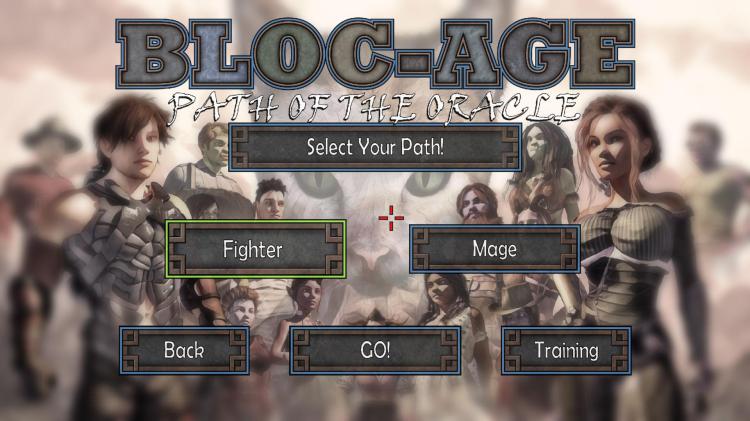
Fighter / Mage: Select which character you would like to play in the new game.
Training: Starts a training level to learn the game play basics.
Go!: Starts the game.
Back: Return to the game selection screen.

Control Buttons: Click a button on the input screen to select that action for rebinding. Then press a key on the keyboard or click a mouse button to assign that key/button to the selected action. Pressing the ‘escape’ key will cancel binding of that function. Hovering over a button and pressing the ‘delete’ key will unbind that function.
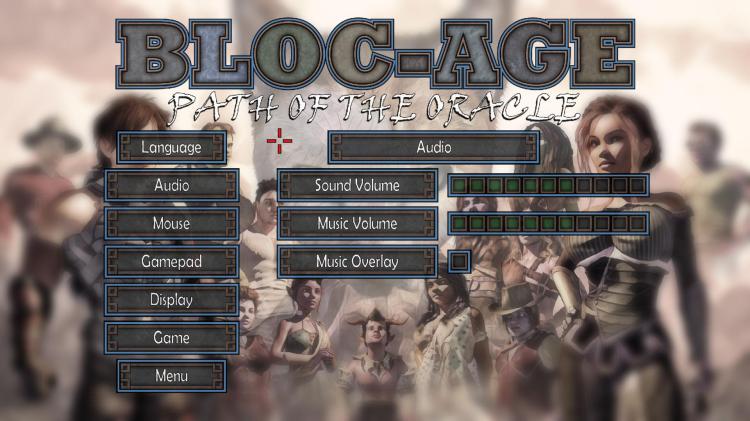
Sound Volume: How loud sound effects will be.
Music Volume: How loud the music will be.
Music Overlays: Displays artist and title of the current music track playing
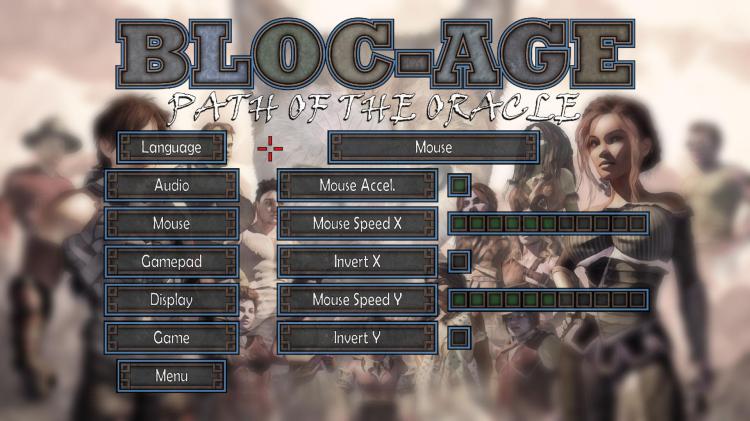
Mouse Accel: Makes looking around with the mouse smoother. Turning mouse acceleration off may improve aiming.
Mouse Speed X: Speed of the side to side in-game mouse look.
Invert X: Invert the side to side in-game mouse look movement direction.
Mouse Speed Y: Speed of the up and down in-game mouse look.
Invert Y: Invert the up and down in-game mouse look movement direction.

Look Accel: Makes looking around with the controller smoother. Turning look acceleration off may improve aiming.
Look Speed X: Speed of the side to side in-game controller look.
Invert X: Invert the side to side in-game controller look movement direction.
Look Speed Y: Speed of the up and down in-game controller look.
Invert Y: Invert the up and down in-game controller look movement direction.
Flip Sticks: By default, the left stick on the controller controls looking while the right stick controls movement. Selecting flip sticks will reverse this.
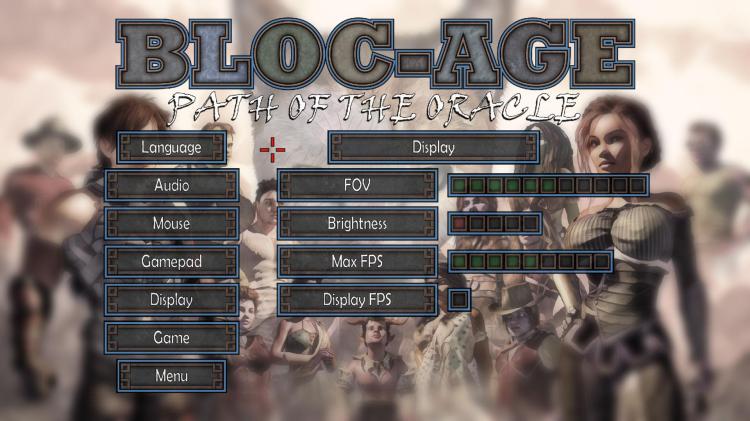
FOV: adjust the field of view of the game.
Brightness: Allow you to increase the brightness of the game if it is too dark to play. This will take effect on the next level.
Max FPS: Allows you to select a maximum frame rate the game will run at. The game should run at very high frames rates, and this will allow you to run the game smoothly, but without putting extra strain on your hardware.
Display FPS: Toggle Frames per Second display on and off.
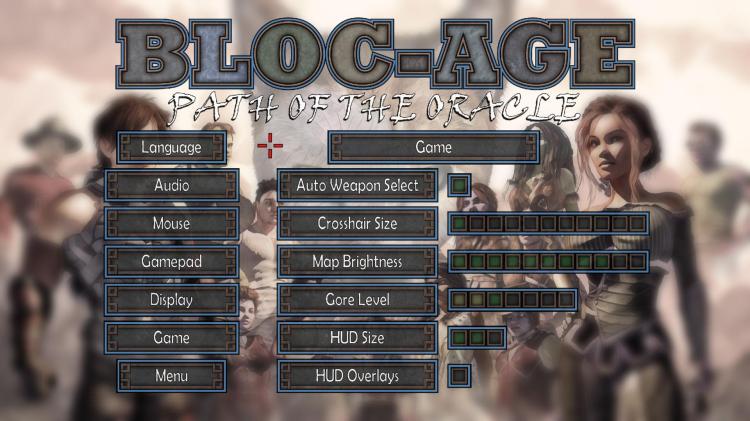
Auto Weapon Select: With this selected you will only have to select which weapon is in your right hand, and the game will select the best weapon for your left hand. This will make the game play more like a classic game but still allows you to have 2 weapons at once. Without this selected you will have to select each hands weapons manually.
Crosshair Size: Adjusts the size of the in-game crosshair.
Map Brightness: Adjust the brightness of the un-scouted areas of the local map from tan to black.
Gore Level: Select how much blood and gib are generated when you attack and kill enemies.
HUD Size: Adjust the size of the HUD (Head Up Display) from off, medium, and large.
HUD Overlays: With this selected text overlays will be displayed in-game telling you what each HUD bar is and how to interact with the game. Good for new players learning how to play the game, but can be turned off later if wanted.
 Atomic Hick Software