The upgrade screen will appear at the beginning of every level. From here you will be able to upgrade yourself, armor, shield and weapons. You will also be able to select the difficulty of the level you are about to start and how many saves you will have access to.
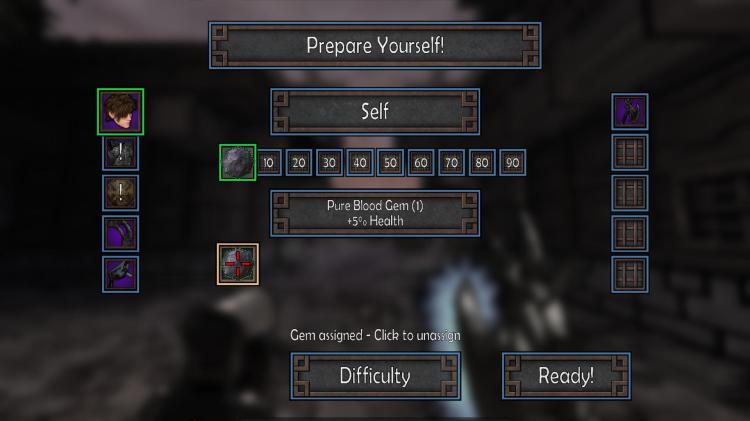
Upgrade Icons: There are 2 columns of items which you are able to upgrade. Click on the one you’d like to upgrade, and a list of gem slot will display in the center of the screen. Some icons will display metals bars, these are weapons which you have not found yet and will not be able to upgrade. If a [!] is shown over the icon, the item has empty gems slots that can be filled. Early in the game you will most likely not have enough gems to fill all the empty gems slot.
Gem Slots: This is where you will assign gems to the selected item to make it more powerful. The more levels you complete the more gem slots will open. A slot with metals bars and a number are locked until you’ve completed the number of levels displayed on the slot. Empty slots will show a black box, while if a gem has been assigned to that slot it will show the gem. Click a gem slot to select that slot. Once selected all gem that can be assigned to the selected item will display below.
Gems: Once you’ve selected a gem slot a list of gems will display. If no gems show up, you have not found any gem that work with the selected item. Move the mouse over a gem or filled gem slot to see what the gem does. Click on a gem in the lower list to assign that gem to the currently selected gem slot. If the gem slot already has a gem assigned to it clicking on a gem will remove that gem from the slot, allowing you to assign a different gem.

Difficulty: At the bottom of the main upgrade screen is the difficulty button. Click here to toggle to the difficulty / save selection screen. From this screen you will be able to select the difficulty of the upcoming level and the number of save you will have access to. You will not be able to change these (or upgrade weapons) after you click the Ready! button on the upgrade screen. If you are having troubles completing the level with the difficulty you’ve selected, you can restart the level which will allow you to select a lower difficulty.
Ready: Once you’ve assigned all the gems you want and selected your difficulty and number of saves, click the Ready! button to start the level. All gems, saves and difficulty selections will roll over to the next level, so if you are okay with these values from the previous level you will not have to reassign gems or re-select your difficulty or number of saves.
 Atomic Hick Software